InTuneNation Support
Need help? Contact: intunenation@icloud.com.
Quick troubleshooting
- Microphone permission: iOS Settings → Privacy & Security → Microphone → enable InTuneNation.
- Best recording conditions: record in a quiet room, one instrument at a time, phone within 1–3 feet of the sound source.
- Using a speaker reference tone: increase speaker volume and reduce room noise; the app may mark regions as "multiple sources" if other sounds interfere.
- Bluetooth latency: AirPods/Bluetooth mics can add latency or change input gain. If results seem unstable, try recording with the built‑in mic.
Vocal use: InTuneNation is optimized for instrumental scale practice. Singing/vocal analysis is not officially supported at this time and may be inconsistent.
Understanding the waveform
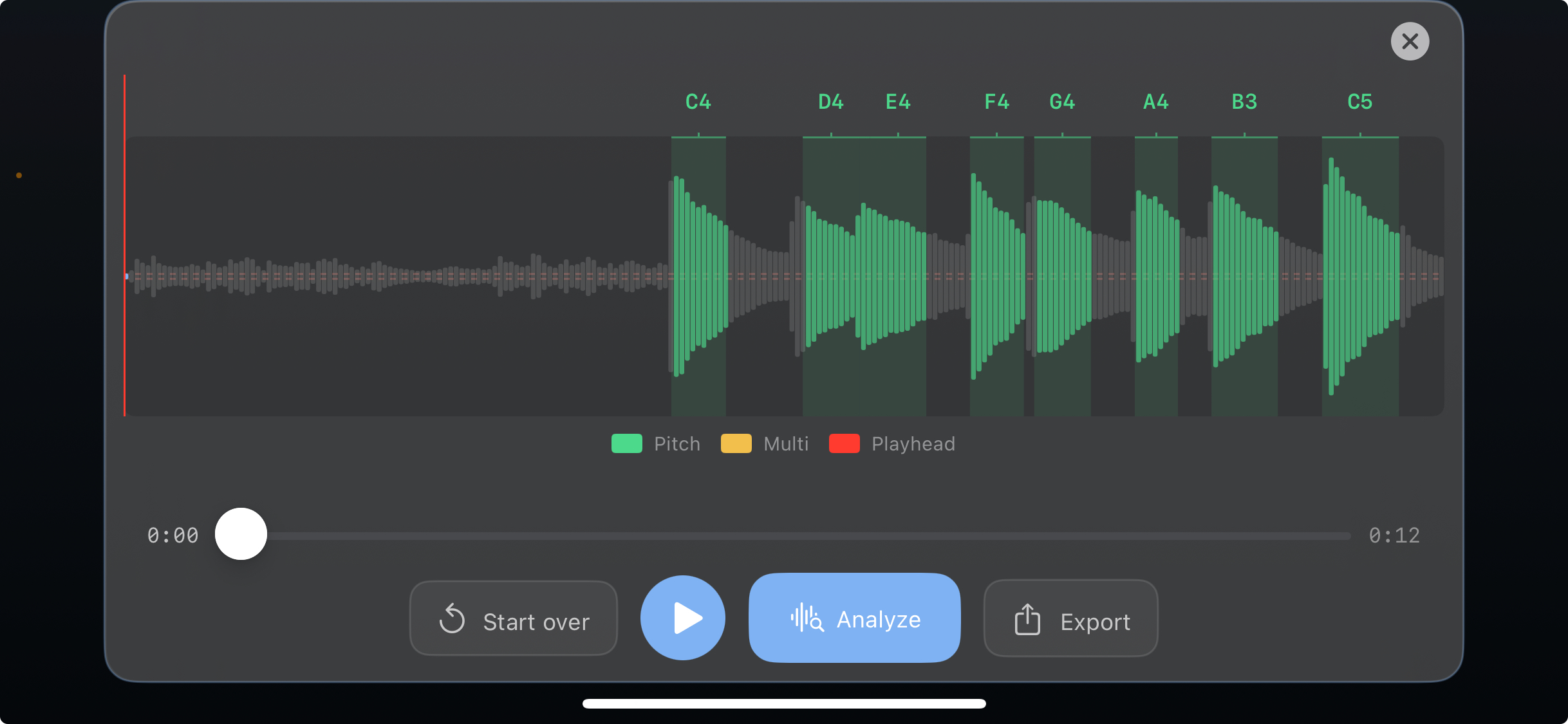
Green regions indicate detected pitch. Review your recording before analyzing.
Exporting
- Audio export: Export the recording as
.m4afrom the results / playback flow. - PDF report: Export an “Analysis Report (PDF)” to share with a teacher or for your own practice notes.
What to include in a support email
- Device model + iOS version
- Instrument/source (e.g., violin, piano, etc.)
- What you expected vs what happened
- If possible: the exported audio or PDF report
Note: InTuneNation performs analysis on-device. The app does not require an account.